The editor
How Rischio's editor works: select an element, drag its handles or type its values, add strata, water or loads, undo, measure and calculate.
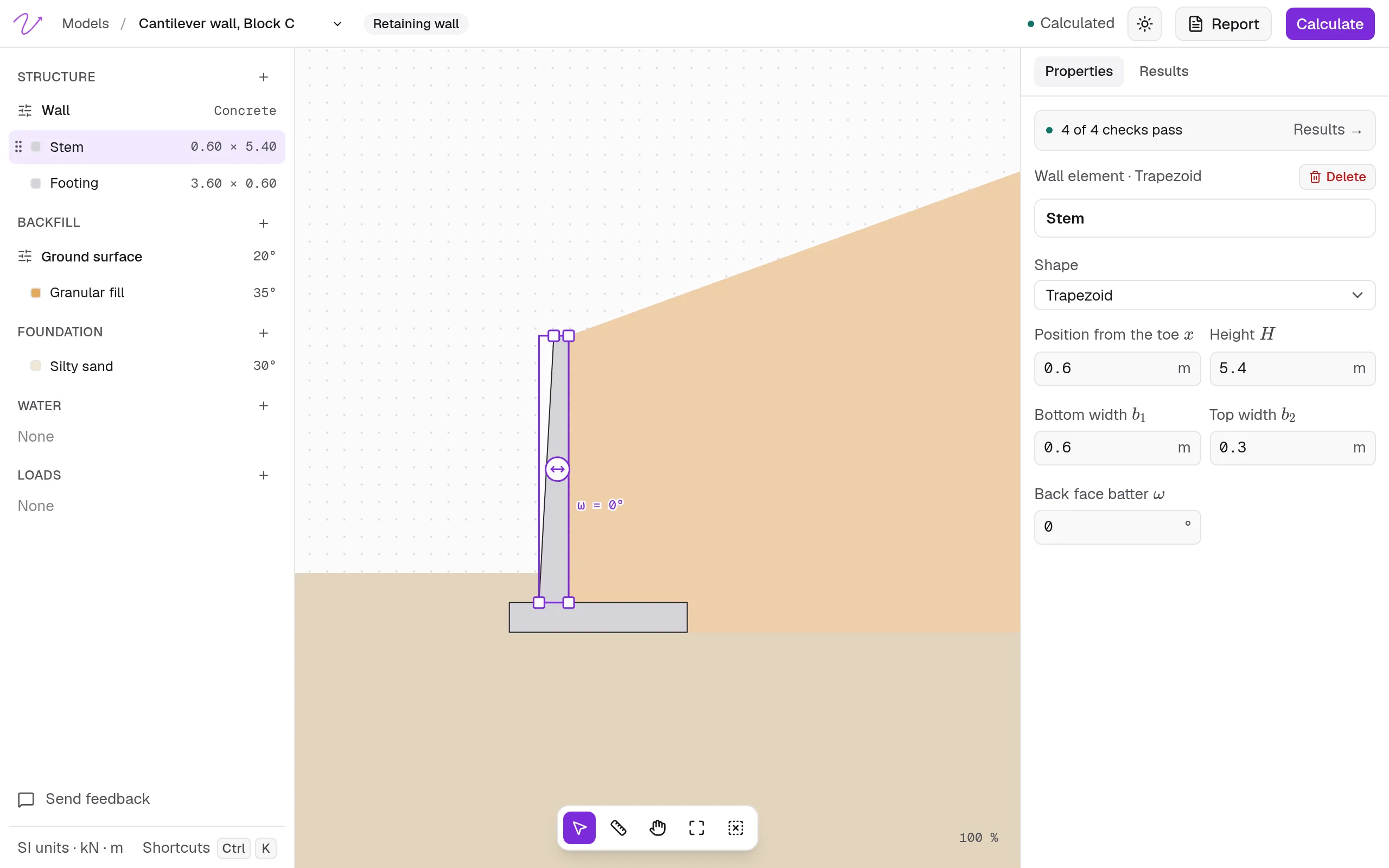
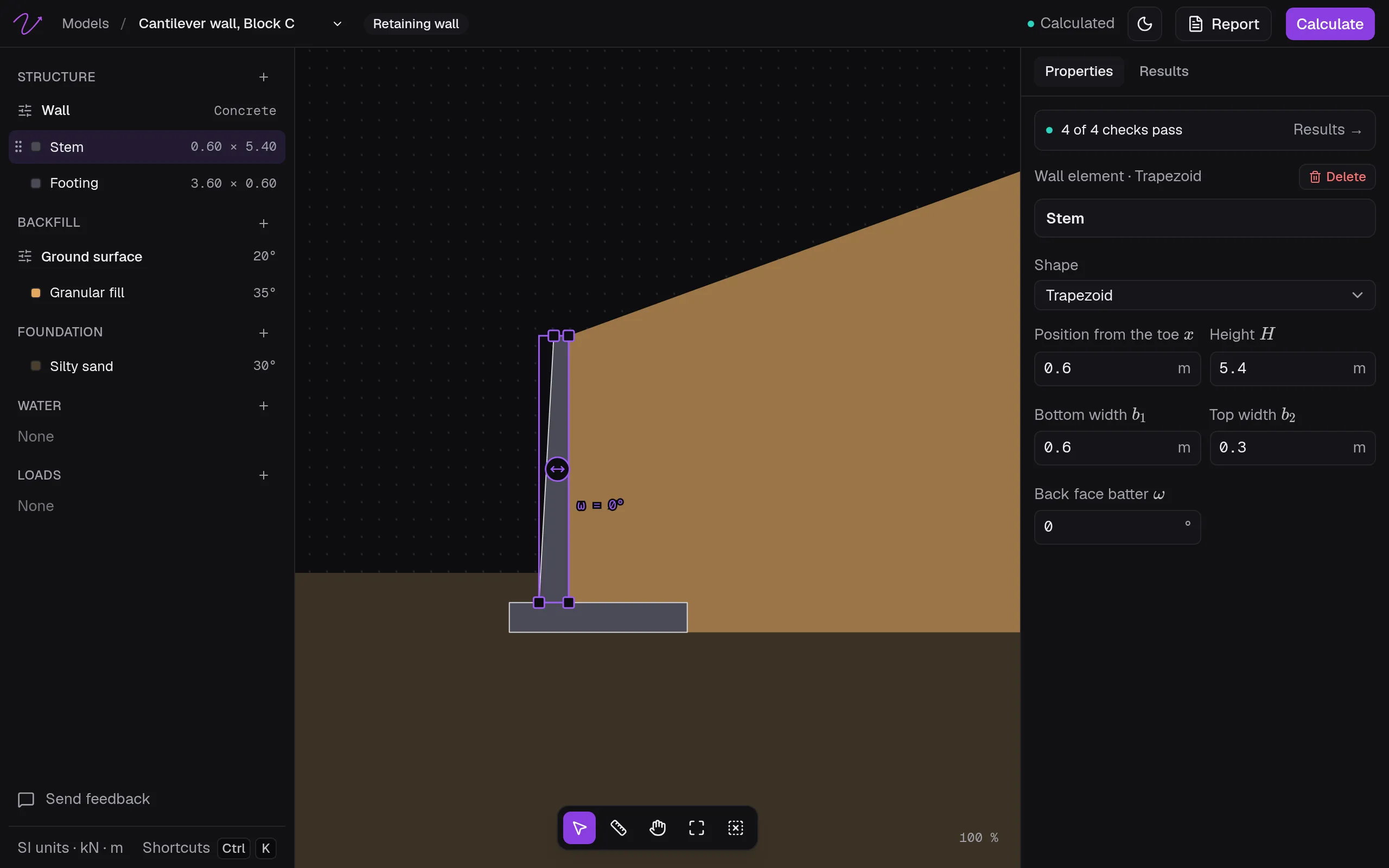
The editor has three parts. On the left, the model’s elements, in groups: for a retaining wall, the wall, the backfill, the foundation, the water and the loads. In the middle, the drawing. On the right, two tabs: Properties and Results.
Select and change an element
Click an element on the drawing or in the list. Properties shows its name and its data, and the drawing shows its handles.
- Drag a handle to change a dimension or a level. Each one says what it changes (“Drag to change the height H”), and a dragged value moves in steps of 5 cm.
- Type a value in Properties. Each field has its symbol and its unit, and takes a decimal point or a comma.
- Some data are optional, such as a soil’s Elastic properties: a switch turns them on.
Esc deselects, and so does a click on an empty part of the drawing.
Add, reorder and delete
The + next to a group adds to it:
| Tool | What you can add |
|---|---|
| Retaining wall | An element on top of the wall (that’s how gabion levels are added), a stratum to the backfill or to the foundation, a water table behind or in front of the wall, a uniform surcharge |
| Footing | A stratum at the bottom, a water table |
| Piles | A stratum at the bottom, a water table |
| Open channel | Vertices of the cross-section (see below) |
Drag the rows of the strata, or of the wall’s elements, to change their order. Delete in Properties, or Del, removes the selected element. What a model can’t do without stays: the footing and its load, the pile, the last stratum of a list.
Open channels
The cross-section is a line of vertices. Drag a vertex to move it, click the + on a segment to add one, and remove it with Delete vertex (Del). A section needs at least three.
The Vertices and roughness table has the same points as a spreadsheet: arrow keys to move, F2 to edit, and copy and paste with Excel. The Profile inset, in a corner of the drawing, opens the discharge and the slope.
Save and calculate
- Each change is saved as you make it. Saving doesn’t calculate.
- Calculate, or ⌘↵ (Ctrl+Enter), sends the model to the engine. Change anything afterwards and the results are marked Out of date until you calculate again.
- ⌘Z (Ctrl+Z) undoes and ⌘⇧Z (Ctrl+Shift+Z) redoes, up to 100 steps, while the page is open.
When a model can’t be calculated, the panel says why (“Cannot calculate: …”) and selects the element to fix.
Move around the drawing
The drawing’s toolbar has Select (V), Measure (M), Pan (H) and Zoom to fit (Shift+1). Space and drag, or the middle button, moves the drawing; ⌘ (Ctrl) and the scroll wheel, or a pinch, zooms it. Measurements are there to check a distance and aren’t saved. All the shortcuts: Keyboard shortcuts.
Units
Rischio works in SI: kN, m and kPa, and angles in degrees.
When someone else changes the model
If your AI agent is working on the model you have open, the editor says so and waits; Take over gives it back to you. If the model changes somewhere else while you have changes that aren’t saved yet, you choose between Load their version and Keep mine.