
Create and organize your models
Start a model in Rischio from a template, the AI, a verified example or a copy, then find, rename, duplicate or delete it on the Models page.
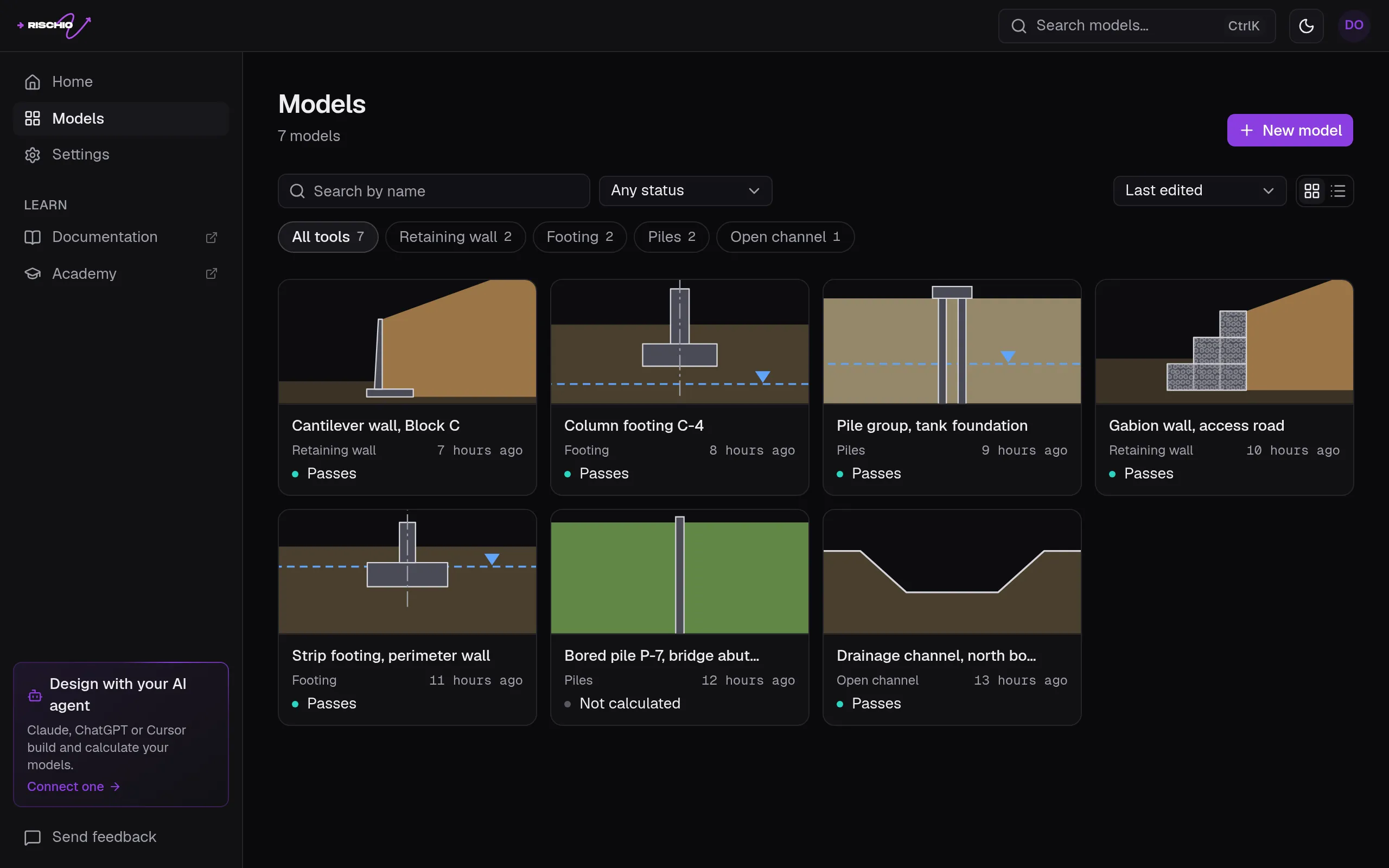
A model is one calculation: a wall, a footing, a pile or a pile group, or a channel, with its data and its results. All of yours are on the studio’s Models page, and the ones you edited last are on its home page, under Recent.
Start a model
There’s no blank model. Each one starts from something that you change to your case:
- A template. Pick a tool under Start from a tool, on the home page, or use New model on the Models page.
- A sentence. Describe it in Create with AI, on the home page: Create a model with AI.
- A verified example. On any verified example, Open in the studio and then Open a copy in my models.
- A copy of one of yours. Duplicate, in its menu on the Models page. The copy keeps the results.
- Your agent. A connected AI agent creates models in your account: Connect your agent.
The templates, tool by tool:
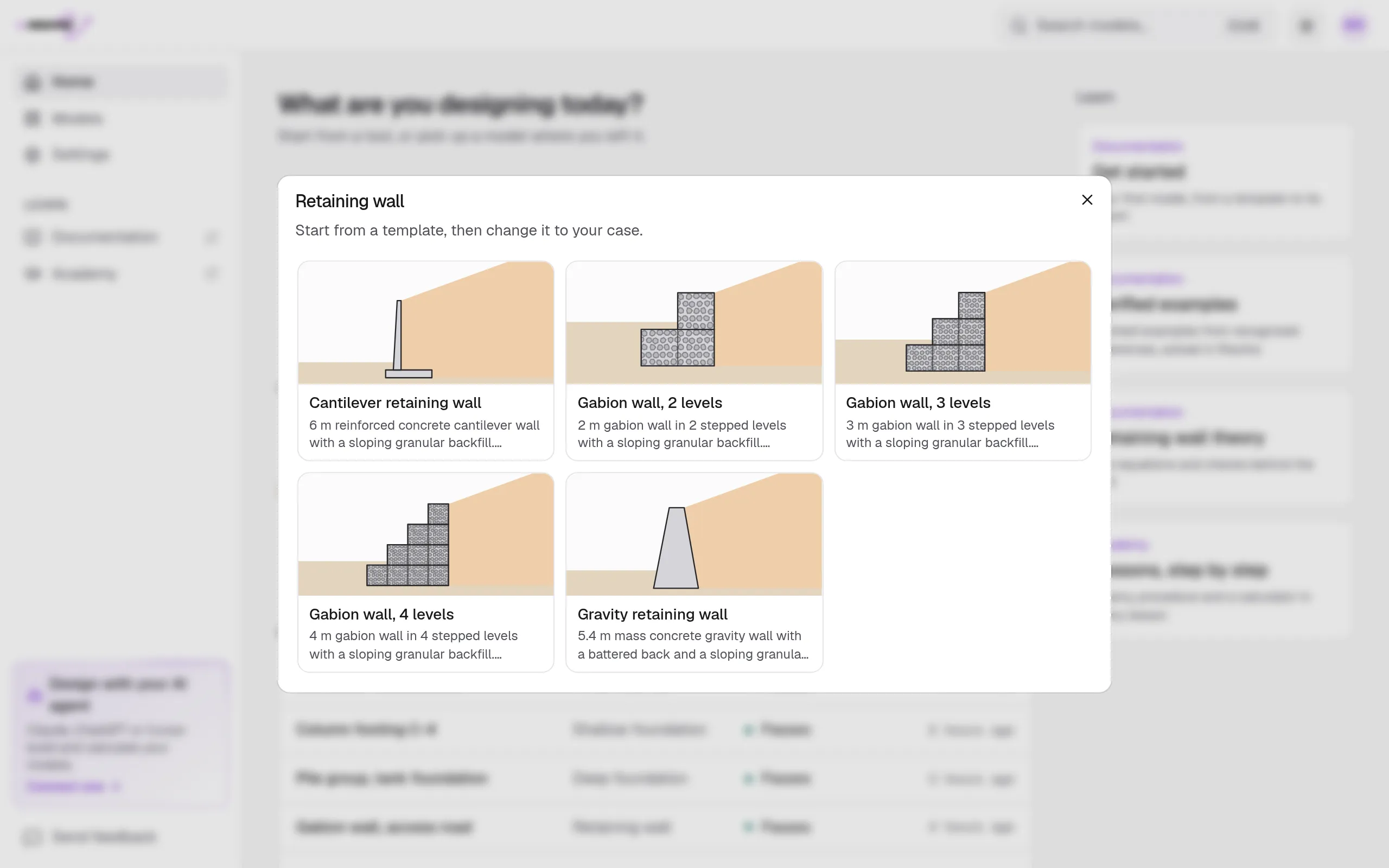
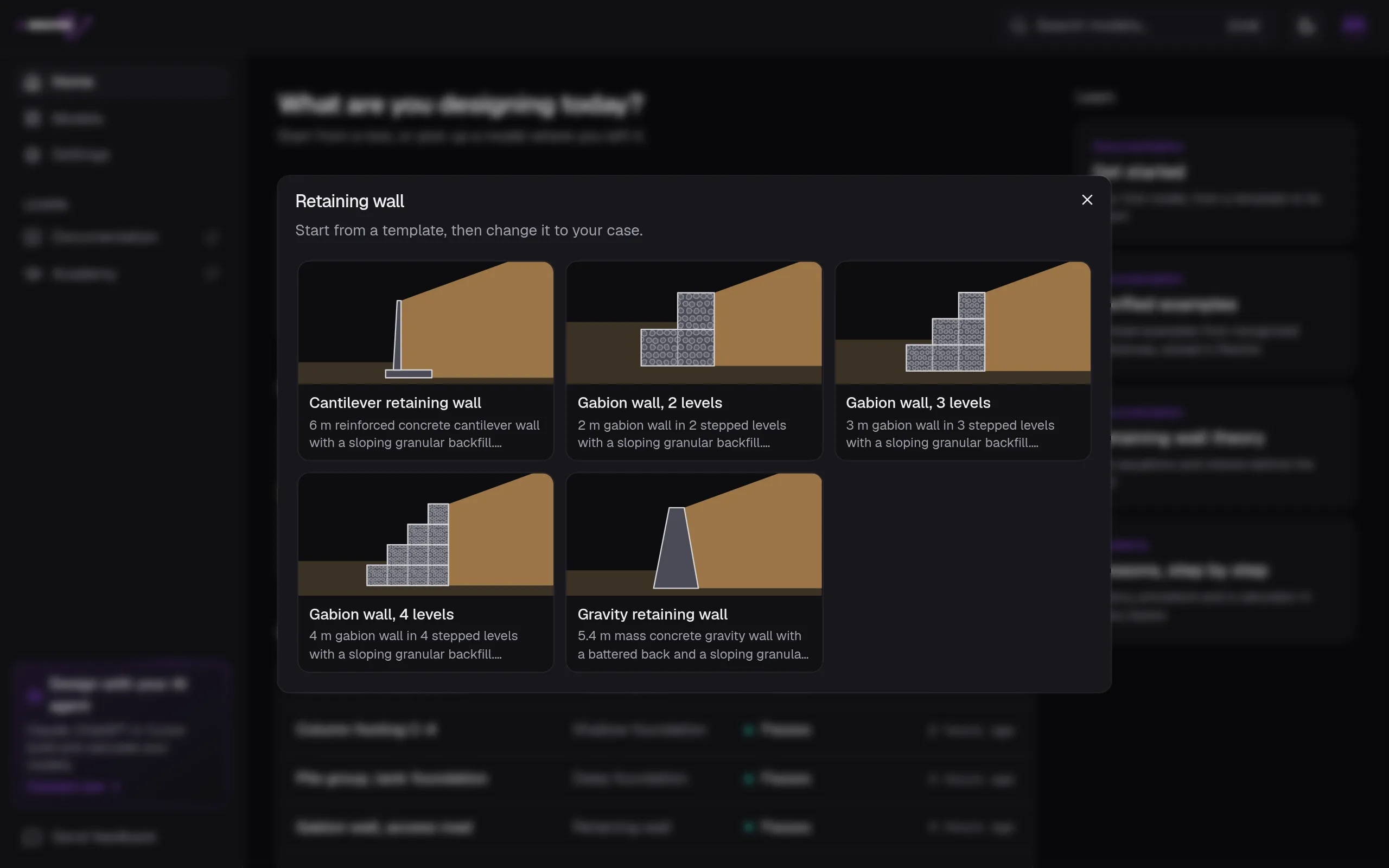
| Tool | Templates |
|---|---|
| Retaining wall |
|
| Footing |
|
| Piles |
|
| Open channel |
|
Find a model
The Models page searches by name and filters by tool and by status: Passes, Fails, Out of date or Not calculated. It sorts by Last edited, Name or Date created, in a grid or a list. Anywhere in the studio outside the editor, ⌘K (Ctrl+K) searches your models by name or tool.
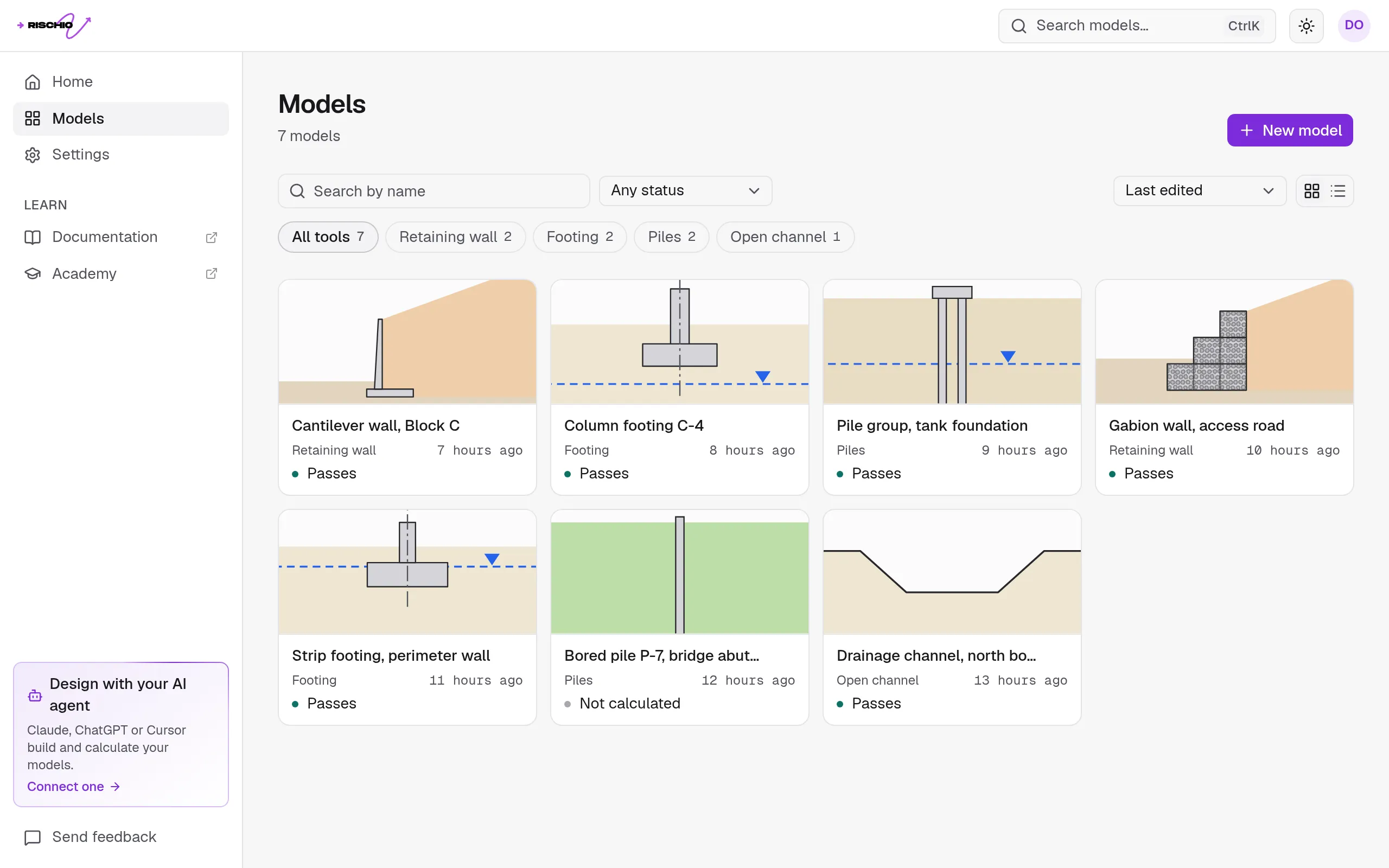
Rename, duplicate, delete
A model’s menu, on the Models page, has Calculation report, Rename, Duplicate and Delete. In the editor, click its name in the top bar to rename it. A name has 4 to 50 characters.
Deleting a model deletes its results with it, and it can’t be undone.
On the free plan
The free plan keeps up to 3 models. With 3 of them, New model and Duplicate wait until you delete one or move to Professional; the models you have stay yours to edit and calculate.